Multi-Session Chat
Run multiple independent agent conversations simultaneously.
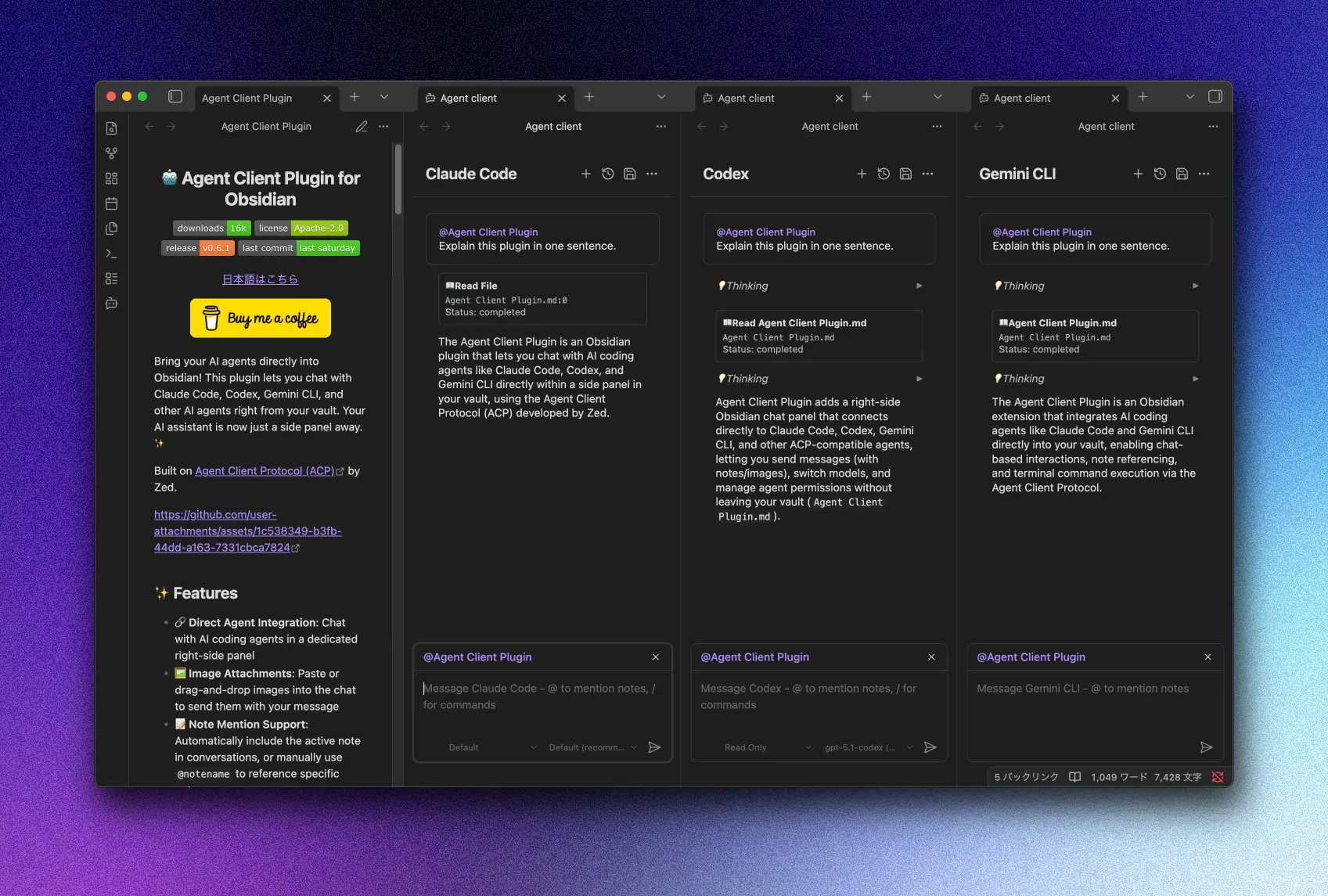
Overview
Agent Client supports opening multiple chat views, each with its own:
- Independent agent process
- Separate session and message history
- Individual agent selection
TIP
This is useful when you want to work with different agents side-by-side, or run parallel conversations for different tasks.
Opening Multiple Views
Via Command Palette
- Open command palette (
Cmd/Ctrl + P) - Search for "Open new chat view"
- A new chat view opens in your configured location
Via Header Menu
- Click the ⋮ (ellipsis) menu in the chat header
- Select "Open new view"
Chat View Location
Configure where new chat views open in Settings → Agent Client → Display → Chat view location:
| Location | Description |
|---|---|
| Right pane (tabs) (default) | Opens in the right sidebar |
| Editor area (tabs) | Opens as a tab in the editor area |
| Editor area (split) | Opens in a new split pane |
Broadcast Commands
Control multiple chat views at once from the command palette:
| Command | Description |
|---|---|
| Broadcast prompt | Copy the active view's input text and images to all other views |
| Broadcast send | Send messages in all views simultaneously |
| Broadcast cancel | Cancel ongoing operations in all views |
TIP
Broadcast commands are useful for comparing how different agents respond to the same prompt.
Focus Navigation
Quickly switch between chat views:
| Command | Description |
|---|---|
| Focus next chat view | Move focus to the next chat view |
| Focus previous chat view | Move focus to the previous chat view |
TIP
Assign keyboard shortcuts to these commands in Settings → Hotkeys for faster navigation.