Note Mentions
Reference your Obsidian notes directly in conversations with AI agents.
Auto-Mention Active Note
When enabled, the plugin automatically includes the currently active note in your message. This is useful when you want to discuss or work on the note you're viewing.
Enable this in Settings → Agent Client → Mentions → Auto-mention active note.
How Auto-Mention Works
Unlike manual mentions, auto-mention only passes the note's file path to the agent—not its full content. The agent can then use its Read tool to examine the file if needed.
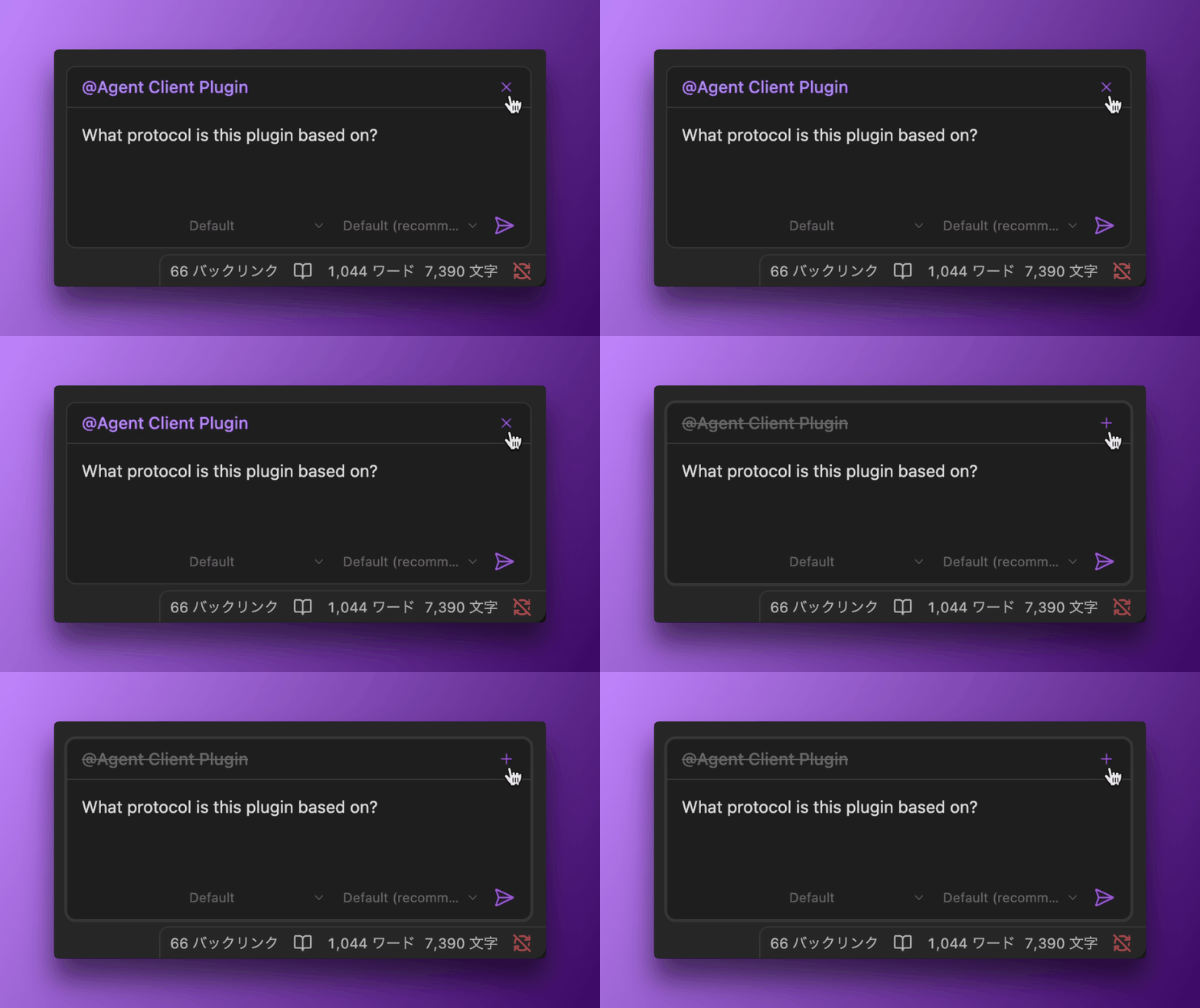
When auto-mention is active, a badge appears above the input field showing the current note name (e.g., @My Note).
Temporary Disable
You can temporarily disable auto-mention for a single message by clicking the × button next to the badge. Click the + button to re-enable it. This toggle only affects the current message—auto-mention will be active again for subsequent messages.
Selection Context
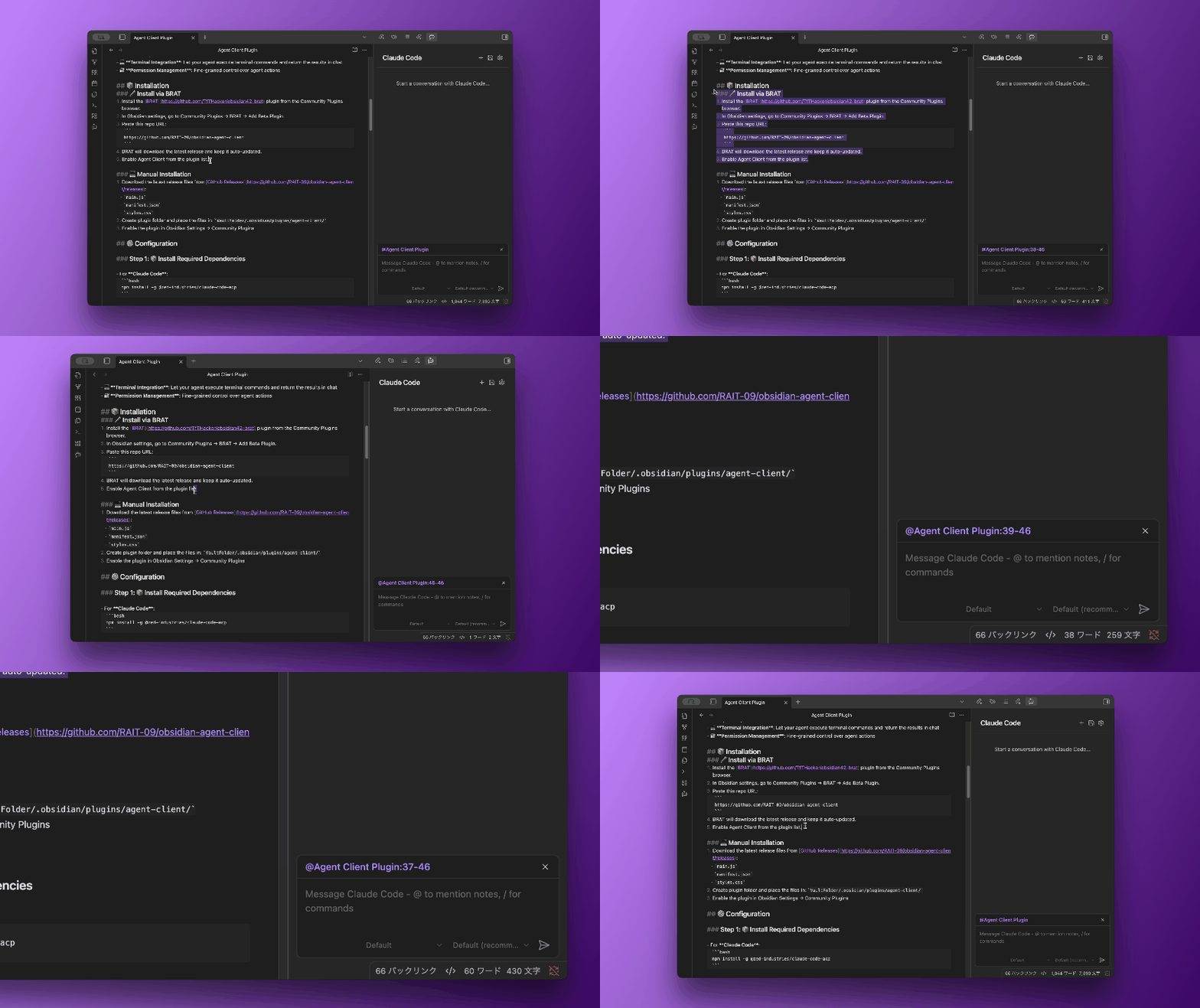
If you select text in your note, the selected lines are passed as context to the agent. The badge will show the line range (e.g., @My Note:5-10), and the agent receives both the file path and the selected content.
Manual Mentions
Use the @ syntax to reference specific notes:
@[[My Note]]As you type @, a dropdown appears with matching notes from your vault. Select a note to insert the mention.
How Manual Mentions Work
When you send a message with manual mentions:
- The plugin reads the content of the mentioned notes
- The note content is included in the message sent to the agent
- The agent can then reference, analyze, or modify the note content
Expand Wikilink Context
When you mention (or auto-mention) a note, any [[wikilinks]] inside its content are opaque to the agent—it can't tell which file each one points to. With Expand wikilink context on (the default), the plugin sends a compact <obsidian_note_links> block alongside the note (never mixed into the note body) that resolves each [[link]] to a file path and file:// URI:
resolved="true"— the file the link resolves to (withpath/uri)resolved="false"— no match in the vault
Each link resolves to the single file Obsidian itself would open (same-folder priority), so the agent sees where the link actually points. Only pointers are sent—never the linked notes' content. The agent decides what to open with its Read tool. Links inside code blocks, ![[embeds]], and in-note [[#anchors]] are skipped, and each note is capped at 50 links.
Toggle it in Settings → Agent Client → Mentions → Expand wikilink context.
Not the same as "Wikilink formatting"
This setting resolves [[links]] inside your notes into paths for the agent to read. The separate Prompt injection → Wikilink formatting setting instead asks the agent to write [[Note Name]] links in its replies. See Prompt Injection.
Length Limits
To prevent excessively large messages, the plugin limits the amount of content included:
| Setting | Default | Description |
|---|---|---|
| Max note length | 10,000 characters | Maximum characters per mentioned note |
| Max selection length | 10,000 characters | Maximum characters for text selection in auto-mention |
Configure these in Settings → Agent Client → Mentions.
TIP
Content exceeding the limit is truncated with a note indicating the original length.
Tips
- Use manual mentions to include specific notes as context
- Mention multiple notes to give the agent a broader understanding
- For large notes, consider selecting the relevant portion and using auto-mention instead