Floating Chat
A persistent, draggable chat window that floats over your workspace. Perfect for quick conversations without leaving your current view.
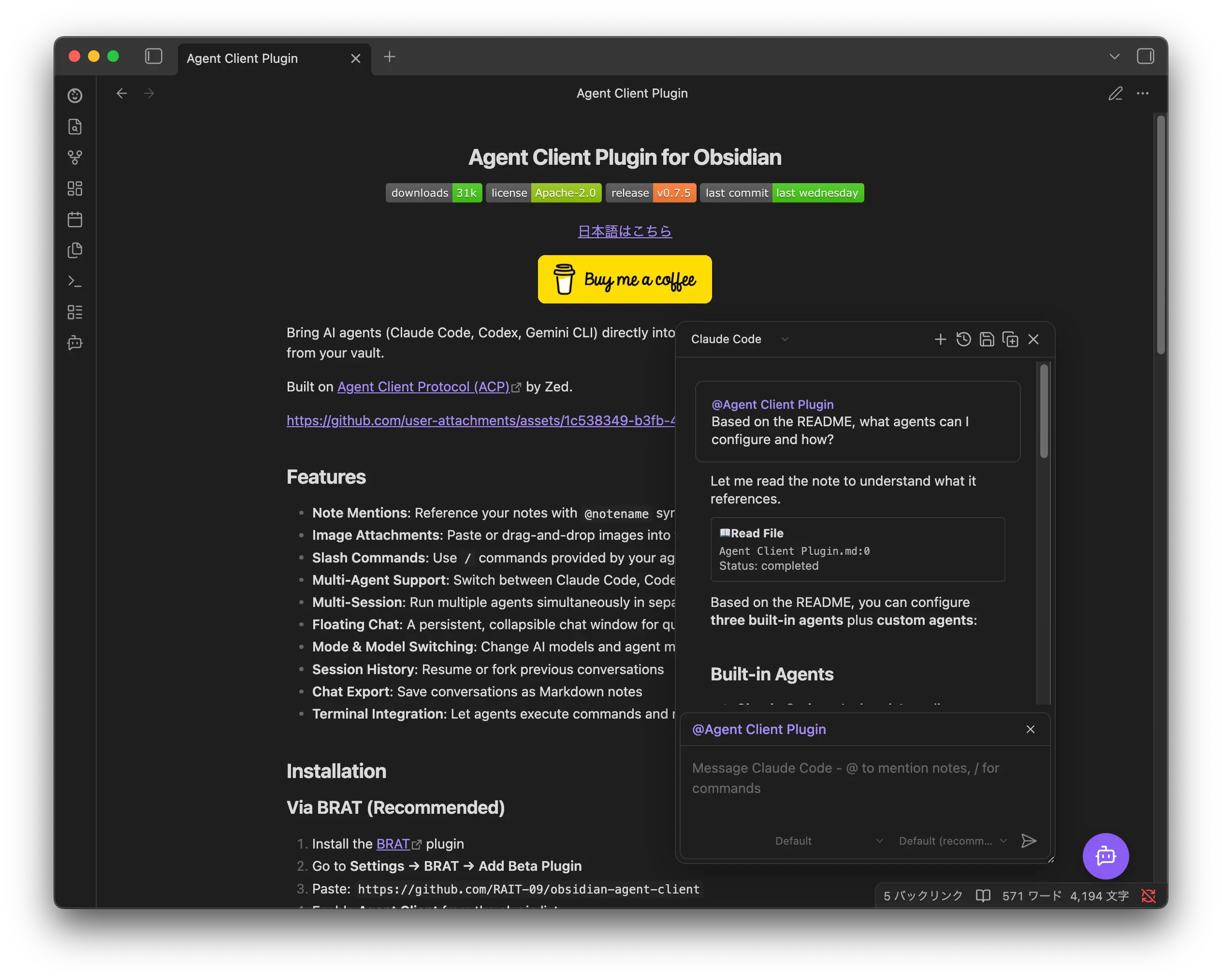
Overview
The Floating Chat provides a lightweight alternative to the sidebar chat view:
- Draggable window — move it anywhere on screen
- Resizable — drag the edges to adjust size
- Collapsible — hide the window without losing your session
- Multi-window — open multiple floating windows simultaneously
- Independent sessions — each window runs its own agent session
TIP
Enable the floating chat in Settings → Agent Client → Floating chat → Enable floating chat.
Getting Started
- Enable Enable floating chat in settings
- A floating button appears in the bottom-right corner
- Click the button to open a chat window
- Start chatting — the window works just like the sidebar chat

Moving and Resizing
- Drag the header bar to move the window
- Resize by dragging the bottom-right corner of the window
- Position and size are saved automatically
Multiple Windows
Open more than one floating chat window to run parallel conversations.
Opening Additional Windows
- Click "Open new floating chat" from the ⋮ (More) menu in the floating window header
- Or use the command "Open new floating chat view" from the command palette
Switching Between Windows
When multiple windows exist, clicking the floating button shows an instance menu:
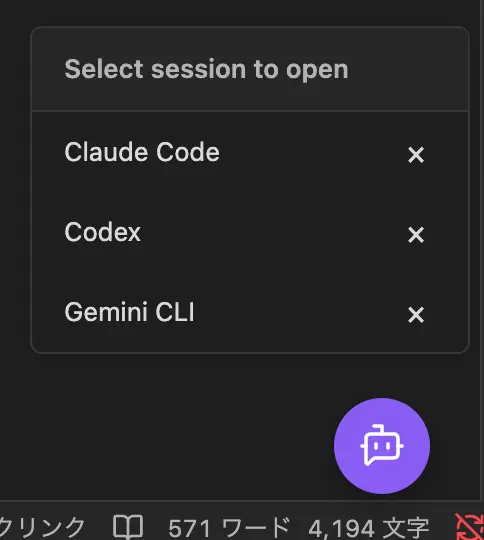
- Click a session name to expand that window
- Click × to close a session
Hiding All Windows
To see the editor without closing anything, minimize every floating window at once:
- Click "Minimize all floating chats" from the ⋮ (More) menu in any floating window
- Or use the command "Toggle all floating chat views" — it minimizes all windows while any is expanded, and expands them all once every window is minimized, so one hotkey takes you to the editor and back
Sessions keep running while minimized.
TIP
The focused floating window is always displayed in front of other floating windows.
Commands
| Command | Description |
|---|---|
| Open floating chat view | Open an existing floating window, or create one if none exist |
| Open new floating chat view | Always create a new floating window |
| Minimize floating chat view | Hide the focused floating window (session is preserved) |
| Close floating chat view | Close the focused floating window and end the session |
| Toggle all floating chat views | Minimize all floating windows while any is expanded, or expand them all when every window is minimized |
TIP
Assign keyboard shortcuts to these commands in Settings → Hotkeys for quick access.
Configuration
Customize the floating chat in Settings → Agent Client → Floating chat:
| Setting | Default | Description |
|---|---|---|
| Enable floating chat | Off | Enable the floating chat button and draggable chat windows |
| Floating button image | Default icon | URL or vault path to a custom button image |