Basic Usage
Opening the Chat Panel
You can open the Agent Client chat panel in two ways:
- Ribbon Icon: Click the robot icon in the left ribbon
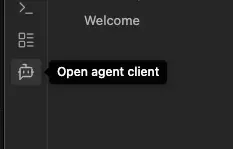
- Command Palette: Open the command palette (
Cmd/Ctrl + P) and search for "Open agent chat"
The chat panel opens in the right sidebar.
Sending Messages
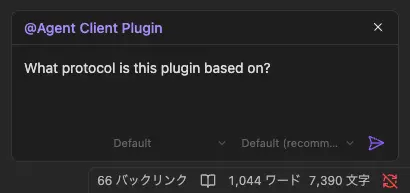
- Type your message in the input field at the bottom
- Press
Enteror click the send button - Wait for the agent's response
Sending Images
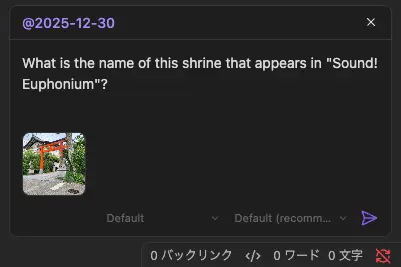
You can attach images to your messages by pasting or dragging and dropping.
- Paste: Copy an image to your clipboard and paste (
Cmd/Ctrl + V) in the input field - Drag and Drop: Drag image files directly onto the input area
Attached images appear as thumbnails below the text area. Click the × on a thumbnail to remove it.
TIP
Image attachments require agent support. If the agent doesn't support images, a notification will appear when you try to attach one.
See Sending Images for more details.
Switching Agents
To switch agents for the current view:
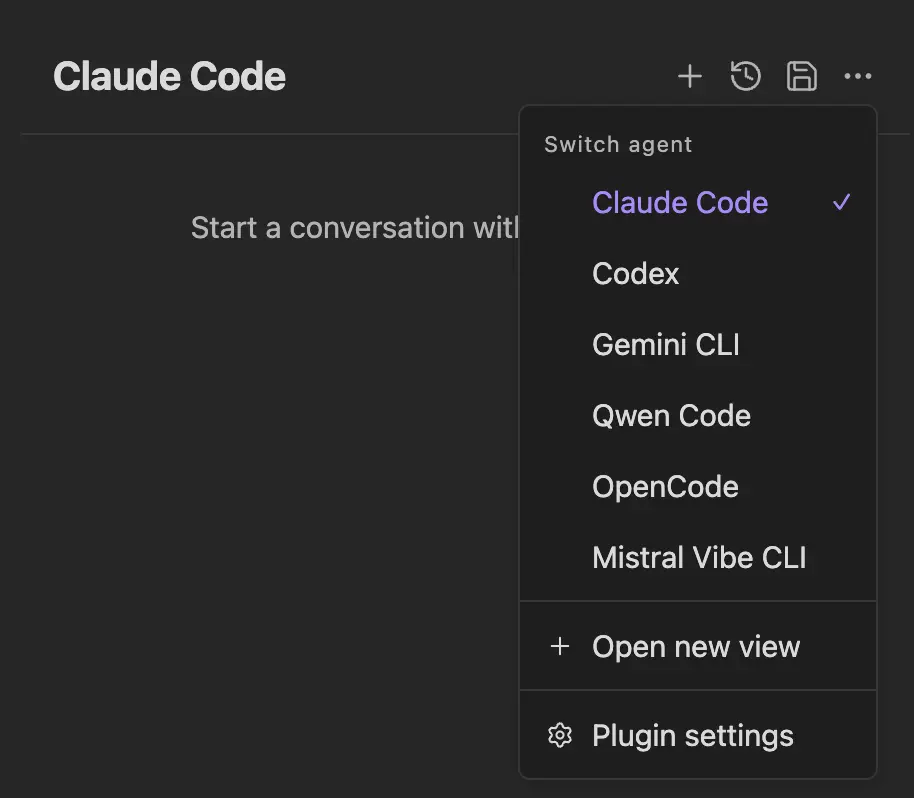
- Click the ⋮ (ellipsis) menu in the chat header
- Select "Switch agent"
- The agent switches immediately
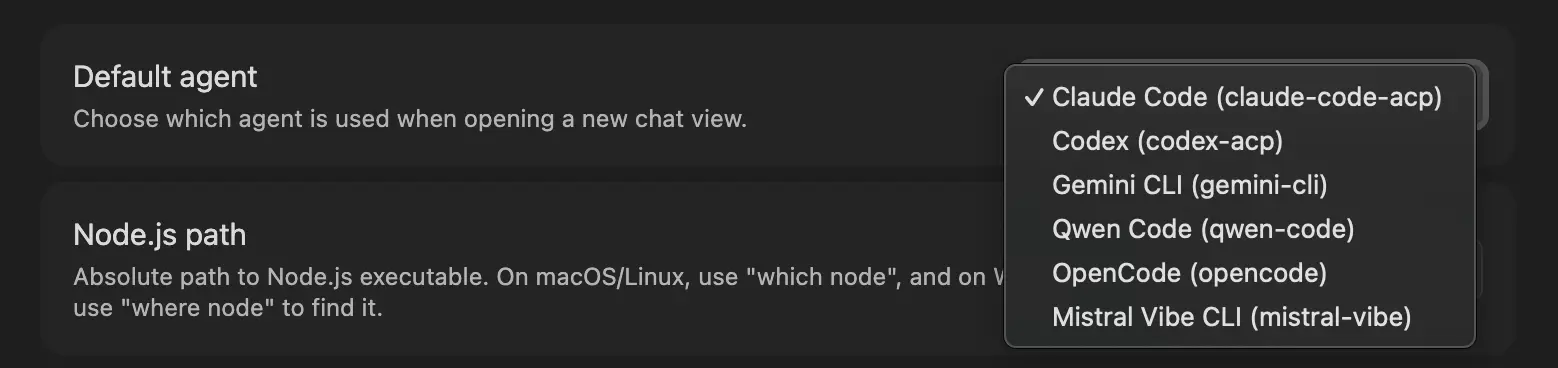
This is a one-time change for that view only.
TIP
To change the default agent for new chat views, go to Settings → Agent Client → Default agent.
Multiple Chat Views
You can open multiple chat views to run independent conversations simultaneously. Each view has its own agent process and session.
See Multi-Session Chat for details on:
- Opening multiple views
- Broadcast commands
- Focus navigation
Floating Chat
A draggable, resizable chat window that floats over your workspace. Enable it in Settings → Agent Client → Floating chat.
See Floating Chat for details.
Changing Models and Modes
Below the input field, you'll find dropdowns to:
- Change Model: Switch between different AI models (e.g., Sonnet, Haiku for Claude)
- Change Mode: Switch agent modes (e.g., Plan Mode)
TIP
Available models and modes depend on the active agent.
Starting a New Chat
Click the New Chat button in the header to start a fresh conversation. The previous chat can optionally be exported (see Settings).
Stopping Generation
If the agent is generating a response and you want to stop it, click the Stop button that appears during generation.